
This guide is built for small offices, high-volume departments, and anyone managing a fleet of laser printers. We'll cover settings, maintenance routines, toner handling, and workflow habits that actually move the needle.
One thing to clear up first: optimization doesn't mean cranking every printer to draft mode and calling it a day. The goal is matching your settings and toner practices to the job in front of you, whether that's an internal memo or a client-facing presentation.
Key Takeaways
- Match settings to the job: duplex, mono, and draft for internal docs; sharper output for customer materials.
- Clean printers regularly, use the right media, and fix streaks or fading before they force reprints.
- Track toner usage, reprints, and downtime to base supply decisions on real data, not guesswork.
- Use remote toner monitoring to cut emergency orders and trim excess fleet inventory.
Assess Your Printer Setup Before Changing Settings
You can't fix what you haven't measured. Before adjusting a single setting, document the basics for each device in your printer fleet.
Start with a simple inventory sheet covering:
- Printer model and physical location
- Primary users or department
- Typical monthly print volume
- Common document types (text, forms, graphics)
- Cartridge part number
- Recurring issues (jams, streaks, slow output)
Once you have that baseline, dig into the data you already have. Printer reports, device counters, purchasing records, and even casual user complaints reveal patterns fast.
One shared printer may handle triple the volume of others. Another device might burn through toner faster than its cartridge specs suggest.
Building a Practical Baseline
Manufacturer page-yield numbers are based on the ISO/IEC standard at roughly 5% page coverage. The Compatible Lexmark 52D1000, for example, is rated 7,500 pages for MS710dn, MS711dn, and MX810de-series printers.
Real-world results still vary with graphics, photos, and heavier coverage on each page.
Lexmark's own guidance on page yields notes that factors like average job size, duplex use, and machine running time can all shift actual cartridge yield away from the lab-tested number. So track your own numbers:
- Pages printed per cartridge
- Number of reprints per week
- Time lost to jams or supply shortages
- Estimated cost per printed page
Compare that against the manufacturer's yield rating. A big gap points to a setting, habit, or maintenance issue worth investigating.
Adjust Printer Settings to Balance Speed, Quality, and Toner Use
Not every document needs the same treatment. A better approach: pick the print mode based on what the page is actually for.
- Draft or toner-save mode — internal memos, drafts, anything that won't leave the building
- Standard mode — routine business correspondence and everyday reports
- Higher-quality mode — presentations, client-facing forms, and graphics where detail and contrast actually matter
Cutting Pages Without Cutting Corners
Duplex printing, multiple pages per sheet, monochrome output, and print preview all reduce unnecessary pages and toner use. That said, some documents genuinely need single-sided output, large text, or accessibility-friendly formatting. Don't apply toner-saving defaults blindly.
The EPA backs this up directly, identifying double-sided printing as an immediate way to cut office paper use, alongside recommendations to reduce output resolution and enable toner-save settings on laser printers where appropriate.
What Actually Slows Down Print Speed
Those same quality and paper settings affect how fast jobs finish. If a job takes longer than expected, several factors are usually at play:
- Print resolution and color processing — higher-quality settings demand more processing power
- Complex graphics or large files — dense images take longer to render
- Network congestion — shared printers on busy networks queue jobs
- Warm-up time — cold printers need a moment before the first page
- Paper handling — certain paper types slow the mechanism down
Test one change at a time. If you adjust resolution and duplex settings simultaneously, you won't know which change actually helped.
600 dpi vs. 1200 dpi: What's the Real Difference?
Most laser printers ship with 600 dpi as the factory default. It's sufficient for ordinary text and the bulk of everyday office documents. Bumping up to 1200 dpi can sharpen fine detail on certain graphics or small text, but it may also increase processing demands or slow output, depending on your device.

Save 1200 dpi for jobs where the extra detail is visible and worth the tradeoff. Everything else runs fine at 600 dpi.
Match your driver's paper type, size, orientation, and finishing settings to what's actually loaded in the tray. Mismatches cause pauses, reprocessing, and avoidable quality problems.
Quick comparison:
| Document Type | Recommended Setting | Why |
|---|---|---|
| Internal memo | Draft, monochrome, duplex | No client visibility, speed matters |
| Customer-facing form | Standard quality, single-sided if required | Balance of clarity and cost |
| Detailed graphic/presentation | Higher quality, color as needed | Detail and contrast are the point |
Maintain the Printer to Protect Performance and Prevent Toner Waste
Toner waste isn't always a toner problem. Dirty internal components, worn rollers, incorrect paper, and poor ventilation cause streaks, faded areas, jams, and misfeeds, all of which lead to reprints and wasted supplies.
A Basic Maintenance Checklist
- Clean accessible internal areas per manufacturer instructions
- Inspect the paper path regularly
- Replace maintenance parts (fusers, rollers) when the device flags them
- Update firmware and drivers when appropriate
- Keep ventilation openings clear of dust and debris
Consistent maintenance can be the difference between a business-class laser printer lasting five years and one lasting fifteen, according to Impression Products' own service experience with fleet customers.
Use calibration, cleaning, and density-adjustment functions only as the manufacturer recommends for that specific model. Running these cycles unnecessarily can consume extra toner without solving anything.
Diagnosing Common Symptoms
| Symptom | Likely Cause |
|---|---|
| Streaks or blank areas | Cartridge, imaging unit, or paper-path debris |
| Repeated jams | Paper, tray, or roller problem |
| Slow output | Connection, queue, or file complexity |
Xerox's own troubleshooting guidance points out that streaks and spots are often caused by dirt or debris in the paper path. Buildup on printhead lenses or the transfer belt, and old or damp paper, are common culprits.
A repeating-defects test page helps pinpoint the actual component instead of assuming the cartridge is always at fault.
After any maintenance, print a test page and log what happened: the issue, the fix, and the outcome. This turns scattered incidents into a pattern you can actually act on.
Choose, Install, and Store Toner Correctly
Cartridge compatibility isn't just about brand. It comes down to the exact printer model, the correct part number, page-yield assumptions, and whether your device uses a separate imaging unit alongside the toner cartridge.
Take the Lexmark 52D1000 as an example. It's compatible with MS710dn, MS711dn, MS810de, MS811dn, MS812de, and the MX710–MX812de series, rated at 7,500 pages at approximately 5% coverage. Order the wrong part number and you risk poor recognition or fit issues—even with an otherwise solid cartridge.
OEM vs. Compatible vs. Remanufactured
There's no universally "best" answer here. What matters is:
- Documented compatibility with your exact model
- Quality testing and satisfaction policies
- Support before and after purchase
- Total cost per page, not just sticker price
- Environmental impact
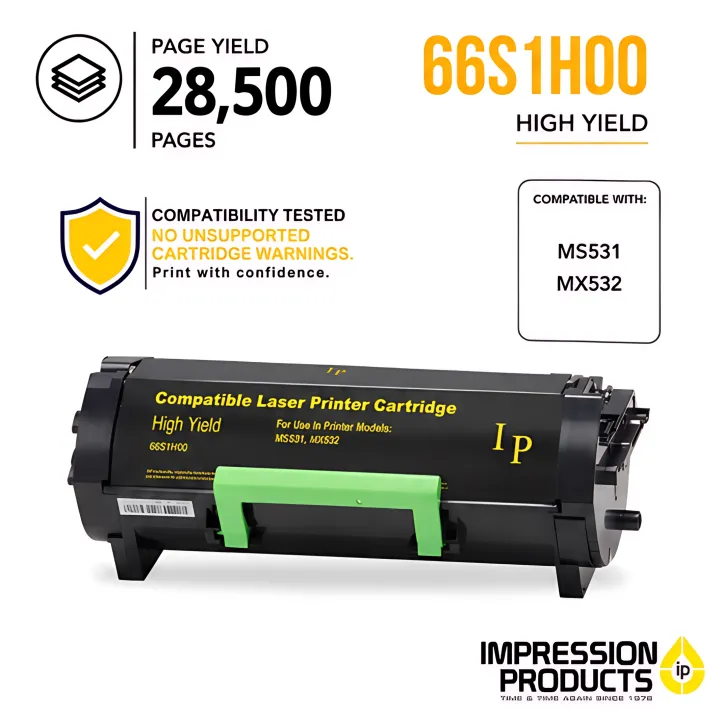
Impression Products remanufactures and manufactures compatible toner cartridges for Lexmark and Dell printers. Every cartridge is quality-tested for reliable recognition and consistent output.
Options run from the standard-yield Compatible Lexmark 55B1000 to the Extra High Yield 62D1X00, rated up to 45,000 pages for high-volume environments.
A few specifics:
- American-made Compatible Lexmark 56F1000: about 6,000 pages at standard coverage
- Genuine Lexmark imaging unit 66S0Z00: rated separately from toner, up to 75,000 pages
- Compatible and remanufactured Lexmark lineup: roughly $50–$215, depending on yield
- Lifetime satisfaction guarantee on every order

If you're unsure which cartridge fits your printer, confirm the exact model and part number before ordering. Impression Products' support line (304-345-3740) can help sort that out.
Installing and Storing Cartridges
Handle new cartridges carefully—most install problems come from skipped prep steps or rough handling of the drum.
- Follow the packaging instructions before you install
- Avoid touching the imaging drum or other sensitive surfaces
- Remove every protective strip or cover
- Seat the cartridge fully and clear any printer prompts
- Store spares sealed, flat, and away from heat, humidity, sunlight, and impact
Rotate stock so older cartridges go in first. Toner doesn't last forever on a shelf, so don't buy so far ahead that inventory ages out.
Optimize Print Workflows and Toner Replenishment
Individual settings only go so far. Real savings come from workflow-level decisions.
Set defaults that reduce waste automatically:
- Default to duplex and monochrome where suitable
- Enable print preview to catch mistakes before they print
- Define a clear policy for when documents stay digital
Printer placement is another workflow lever. A single shared printer handling far more volume than it's rated for becomes a bottleneck, and it wears out faster. Matching printer capacity and location to actual workload prevents both problems.
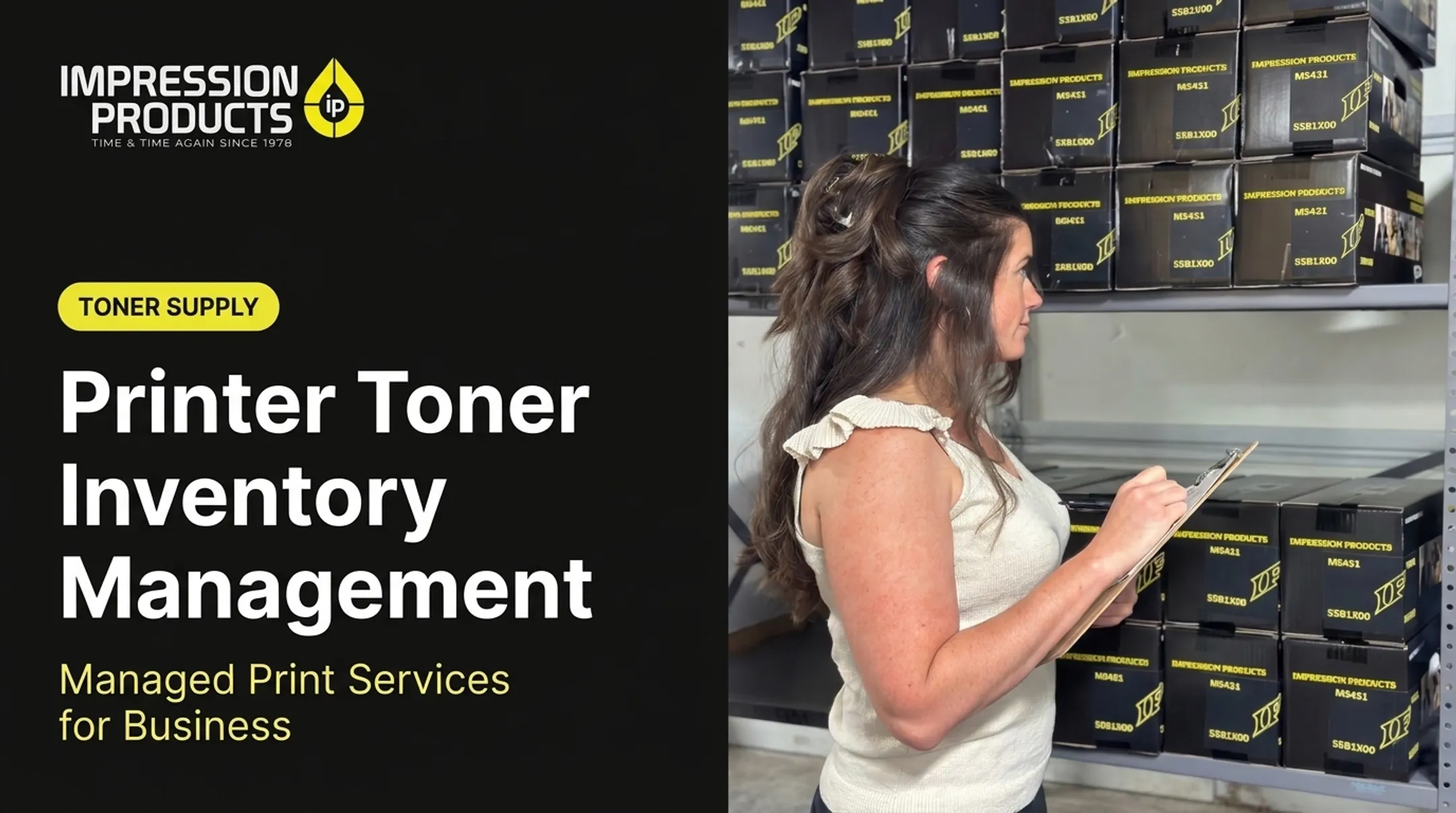
A Simple Toner Inventory Process
Every printer has a recommended monthly volume range. Consistently exceeding it increases maintenance costs and shortens the device's working life. Track this alongside your supply levels:
- Cartridge model and quantity on hand
- Typical monthly consumption
- Reorder point and expected lead time
- Which printer or location each cartridge serves
Keep emergency stock for critical devices, but don't overstock across the board. That ties up cash in cartridges sitting on a shelf.
When Manual Tracking Isn't Enough
For organizations running multiple printers, manual tracking gets messy fast. Impression Products' Remote Toner Inventory Monitoring tracks toner levels in real time and runs predictive refill analysis. It places reorders before a device runs dry, whether you manage five printers or five hundred.

Orders placed by 5:00 PM EST ship the same day, with delivery guaranteed within two business days across the U.S.
Pair that replenishment discipline with a regular review of results: pages printed, toner replacements, reprints, service calls, and stockouts. Those trends show which workflow changes are worth keeping—and which still waste toner or uptime.
Conclusion
Printer optimization depends on settings, maintenance, correct toner selection, smarter printing habits, and measured replenishment working together. Change one thing in isolation and you'll see a small bump. Combine all five and the difference shows up in your monthly costs.
Start small: pick one printer, establish a baseline, apply a few of these changes, and measure results over a set review period. Once it works there, roll the same process out to the rest of your fleet.
Frequently Asked Questions
How do I optimize print speed?
Check your resolution, print mode, and file complexity first, since heavy graphics slow things down. Also review duplex settings, network congestion, and driver updates, and compare results against the manufacturer's rated speed under similar conditions.
Is 600 or 1200 dpi better quality?
1200 dpi can sharpen detail on certain graphics or small text, but 600 dpi is usually plenty for routine business documents. Choose based on what the document needs, along with speed and toner considerations.
How can I make toner last longer?
Use draft or toner-save mode for internal documents, print duplex and monochrome where appropriate, and enable print preview to catch errors early. Also avoid running unnecessary cleaning or calibration cycles.
Why is my printer using toner so quickly?
High volume, dense graphics, and frequent calibration cycles all speed up toner use. Incorrect yield expectations, low-quality cartridges, or an aging imaging unit can also be the cause, so check your usage data and device manual.
Should I use compatible or remanufactured toner cartridges?
Base the decision on verified compatibility, quality testing, expected yield, and support policies rather than price alone. Total cost per page and environmental priorities matter just as much as the upfront cost.