
Poor toner care shows up fast: faded or uneven pages, jammed paper trays, printer downtime, and cartridges that get tossed before they're truly empty. None of that is cheap, and most of it is avoidable.
This guide covers toner-saving print settings, proper cartridge handling and storage, safe cleaning practices, warning signs worth watching, a realistic maintenance schedule, and when it makes sense to bring in professional or managed support.
Key Takeaways
- Match the cartridge to the exact printer model and follow the manufacturer's handling instructions
- Store spare toner in original packaging, away from heat, moisture, and direct light
- Use print preview, duplex, grayscale, and economy settings when the job allows it
- Clean exterior surfaces and paper paths only — leave drum and cartridge internals alone
- Base maintenance schedules on print volume and fleet size, not just the calendar
Why Toner Care Is Important
Toner care keeps print quality steady and cuts down on mid-job failures and last-minute cartridge runs. Longer cartridge life follows when supplies are handled and stored correctly.
Print quality problems compound quickly. Faded text, streaking, speckling, and uneven coverage often lead to reprints, and reprints burn through toner faster than the original job would have. A cartridge that's handled and stored correctly tends to produce steadier results page after page.
There's also a straightforward cost angle. Lower toner waste means:
- Fewer emergency cartridge purchases at full price
- A lower cost per printed page over time
- Less staff time spent troubleshooting print defects that didn't need to happen
Environmental factors matter more than most offices realize. Paper dust, humidity, heat, and worn printer components all affect how evenly toner transfers to the page. A printer sitting near a window or a heating vent, for example, is more likely to produce inconsistent output than one in a stable, climate-controlled room.
Recycling matters too. HP reported recycling 9,200 metric tons of Original HP and Samsung toner cartridges in 2024 alone, according to its 2024 Sustainable Impact Report. Extending a cartridge's usable life, or choosing a remanufactured option, keeps that same material in circulation longer before it needs processing at all.

One caution: toner savings shouldn't come at the expense of documents that require professional-quality output, accurate imaging, or compliance with internal policy. A client-facing proposal isn't the place to test draft mode.
Types of Toner Care
Toner care combines cartridge handling, print-setting choices, printer cleanliness, and ongoing usage monitoring. No single checklist item covers it on its own.
Preventive Cartridge and Printer Care
Start with the basics: the right cartridge, handled correctly.
Printer model numbers can look nearly identical while requiring completely different cartridges. A one-letter difference in a model number, like MS421dn versus MS421dw, can mean a different compatible part.
Always confirm the full model number before ordering, and never mix supplies across incompatible models. Mixing them can cause leaks, recognition errors, or service issues that are entirely avoidable.
Safe handling basics:
- Keep the cartridge sealed until you're ready to install it
- Follow the installation guide for your specific printer, not a generic one
- Avoid touching the drum or other sensitive surfaces, even briefly
- Only redistribute toner by gently shaking the cartridge if the manufacturer's instructions say to do so
For cleaning, stick to what's accessible and approved: exterior surfaces, paper trays, and visible paper paths. Use a soft, dry or lightly dampened lint-free cloth. Skip liquids, aggressive chemicals, and anything that could push toner dust further into the machine.
Compressed air is a bad idea inside a laser printer. It tends to spread toner dust rather than remove it.
When in doubt, the model-specific manual wins over general advice, particularly for cleaning cycles, drum care, and whether cartridge shaking is even recommended for your device.
Print-Usage and Settings Optimization
Most toner waste happens before the print button is even pressed.
- Preview before printing to catch blank pages, formatting errors, or unnecessary content
- Use duplex printing for internal documents and drafts
- Switch to grayscale or black-only mode for anything that doesn't need color
- Select economy or draft settings for internal review copies
HP notes that draft modes generally use less toner than normal mode, though at reduced print quality, and that lowering the toner-density setting also reduces usage, according to HP's guidance on toner usage and cartridge yield. Actual results still depend on document content and page coverage, so don't expect identical savings across every job.
One caveat: duplex printing isn't automatically a toner-saving feature. The longer paper path and extra cartridge rotations in two-sided printing can add mechanical wear over time, per that same HP guidance. It's still worth using for paper savings. Just don't count on it as a guaranteed toner-yield boost.
Selecting the correct paper type, size, and weight matters too. Mismatched paper settings cause misfeeds, poor fusing, and reprints, which waste far more toner than the setting change would have saved.
Review default driver settings across the software your team actually uses so toner-saving choices happen automatically, rather than depending on any one employee remembering to change them.
Condition-Based and Fleet Monitoring
A single printer is easy to keep an eye on. A fleet of them is a different story.
Watch for these signals across your printers:
- Print volume trending upward without an obvious cause
- Cartridges being replaced more often than expected
- Repeated low-toner alerts that don't match actual output
- The same quality defect showing up again and again
- One device consuming noticeably more toner than a similar unit doing similar work
A low-toner alert isn't necessarily a call to action. Some printers estimate remaining toner by page count rather than actual toner levels, so it's worth checking print quality and the printer's own instructions before swapping a cartridge that may still have life left.
In multi-printer environments, tracking cartridge part numbers, installation dates, approximate page counts, and recurring service issues by device helps flag inefficient printers and workflows that generate unnecessary print jobs.
This is exactly where Impression Products' remote toner inventory monitoring fits in. It tracks toner levels in real time, runs predictive refill analysis, and places automatic replacement orders, cutting down on toner-related downtime and last-minute reactive ordering.

Cartridge Selection and Replacement Decisions
OEM, compatible, and remanufactured toner aren't quality tiers; they're different construction categories. OEM cartridges come from the printer manufacturer. Remanufactured cartridges rebuild a used OEM unit. Compatible cartridges are made by a third party to work with a specific printer.
What actually matters when comparing options:
- Verified compatibility with your exact printer model
- Consistent print quality across the cartridge's rated yield
- Supplier support if something goes wrong
- Warranty terms and how they're honored
- Total cost per page, not just the sticker price
Cartridge yield ratings assume standard page coverage, typically around 5%. If your print mix includes dense graphics or large black areas, expect to get fewer pages than the rated yield suggests. Check your actual coverage before comparing cartridges by page count alone.
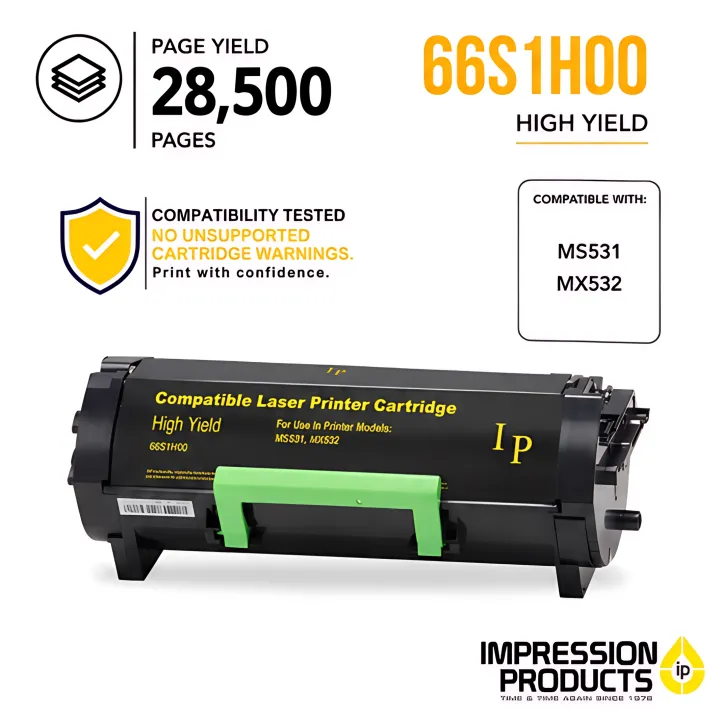
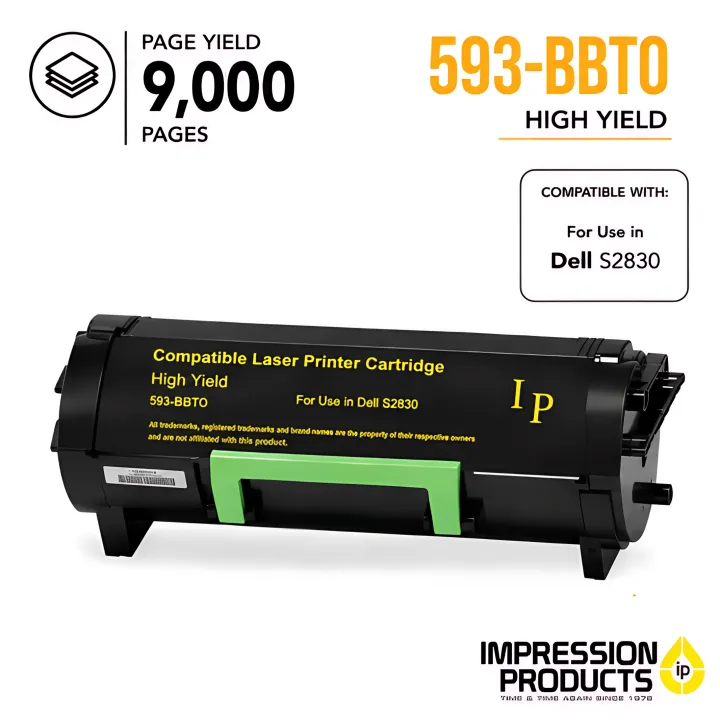
Impression Products offers compatible and remanufactured Lexmark and Dell toner as one option worth considering. Cartridges are compatibility tested, built to meet or exceed OEM performance standards, and backed by a lifetime satisfaction guarantee. That's a relevant example, not a claim that every compatible cartridge on the market performs the same way.
For critical printers, keep a small backup supply on hand, sealed in original packaging. Overstocking, on the other hand, risks cartridges sitting unused long enough to degrade before you ever install them.
How to Tell If Toner or the Printer Needs Attention
Before assuming a cartridge is empty, check the paper, the settings, and the printer's condition. Toner is often the easy scapegoat when the real issue lies elsewhere.
Changes in Print Quality
Different defects point to different causes:
| Symptom | Likely cause |
|---|---|
| Faded text or light patches | Low toner, incorrect darkness setting, or wrong paper type |
| Repeating marks at fixed intervals | Cartridge or imaging unit wear |
| Streaks (horizontal or vertical) | Worn cartridge or debris in the paper path |
| Gray background across the page | Toner darkness setting, humidity, or a worn developer component |
| Page improves temporarily after repositioning cartridge | Low or unevenly distributed toner |
If the same defect shows up on every page regardless of cartridge replacement, the imaging unit is probably the real culprit. It's designed to last through several toner replacements, so swapping toner won't fix a worn drum.
Printing a configuration or quality page and checking it against the device manual is a faster diagnostic step than guessing.

Alerts, Errors, and Unexpected Consumption
Not every alert means what it seems to.
A "Replace Toner" message signals the cartridge has reached its expected life. Some printers stop printing entirely; others allow limited printing through override settings.
An "Unsupported Cartridge" error usually means the printer can't read the cartridge chip, or the cartridge doesn't match the printer model.
Treat these as reasons to dig deeper:
- A sudden jump in cartridge usage compared to prior months
- More frequent replacements than the device's history suggests
- Repeated reprints of the same document
- Visible toner leaking from the cartridge
Stop troubleshooting and call for support if toner is leaking, the printer overheats, you notice an unusual odor, or internal components look damaged. That's not a DIY situation.
Office Printer Toner-Care Schedule
Use this as a starting framework and adjust it for print volume, printer age, and operating environment.
- Daily: Confirm correct paper and settings; preview important jobs; clear failed prints; note new defects or alerts
- Weekly: Wipe accessible exterior surfaces; check trays for dust or toner residue; confirm supplies are stored properly
- Monthly or quarterly: Run approved cleaning or calibration cycles; inspect accessible paper paths; review toner use and replacement history
- Annually or per service interval: Schedule preventive service; check rollers, drums, fusers, and maintenance kits; confirm the printer still fits the workload
Low-volume offices can use a lighter version of this schedule. High-volume sites need tighter checks: pharmacies, hotel front desks, dealership parts counters, and multi-location retail. Those environments often do better with automated replenishment than with manual reordering.
Document the schedule by printer and assign someone to own it. Follow manufacturer service intervals based on actual usage, not a generic calendar reminder.
Conclusion
Extending toner life comes down to a handful of connected habits:
- Choosing the right cartridge
- Storing and handling it correctly
- Optimizing print settings
- Keeping the printer clean
- Catching warning signs early
None of these require a service technician on their own. Together they add up to real savings and fewer surprise breakdowns.
A structured care plan balances print quality, cartridge costs, and uptime, without tempting anyone into unsafe DIY repairs on internal components. For businesses managing high print volumes or several printers across locations, that balance gets harder to maintain manually.
That's typically where remote toner monitoring or a managed print arrangement earns its keep. Impression Products' remote inventory monitoring and automatic replacement delivery replace reactive ordering with a predictable replenishment routine.
Frequently Asked Questions
How much does it cost to have an office printer serviced?
Service costs vary based on printer type, the specific issue, parts needed, labor, and whether you have a service agreement in place. Request an estimate for your specific model and issue rather than assuming a flat rate.
What is the average lifespan of an office printer?
Lifespan depends on model quality, duty cycle, maintenance history, and operating conditions. Industry sources like Quocirca's Print Industry Trends 2025 reference a common 3-5 year device refresh cycle, though that's a replacement-planning guideline, not a guaranteed physical lifespan.
How can I make my printer toner last longer?
Use toner-save or economy mode when quality allows, print in duplex, preview jobs before sending them, and confirm correct paper settings. Avoid unnecessary reprints and store spare cartridges properly until needed.
Should I shake a toner cartridge before installing it?
Some manufacturers permit a gentle side-to-side shake to redistribute toner; others advise against it. Always follow your specific cartridge and printer manual, and avoid touching the drum or other sensitive components.
Why is my printer using toner so quickly?
Common causes include high page coverage, frequent reprints, incorrect print settings, or lower cartridge yield than expected. Leaks, low-quality supplies, and printer-component faults can also drive up consumption.